
Contents4 sections
You sell a T-shirt. It comes in three sizes: Small, Medium, and Large. What you do not want is three separate product pages for what is really one shirt. One page, one place to keep the photos and the description up to date, and a simple choice for the customer: pick a size, then buy.
That is exactly what WooCommerce is set up to do. WooCommerce calls each buyable combination a variation. Your one T-shirt, in three sizes, is one product with three variations. A customer lands on a single page, chooses Small, Medium, or Large, and buys that one.
The same idea stretches when your products grow. If the T-shirt later gains two colors, the variations multiply: three sizes in two colors makes six buyable combinations, and each of the six can carry its own price and stock count. We will keep to the three sizes today. Learn the method on three, and thirty will not scare you later.
In this piece we build that T-shirt from start to finish. Small and Medium cost $20 each. Large costs $22, so you can see how one size gets its own price. If you have never added a product at all, start with adding your first product — this piece picks up where it stops.
The work comes in two parts, and the order matters. In Part 1, we set up the list of sizes once, where every product in your store can use it. In Part 2, we hang those sizes on the T-shirt and give each one a price. Part 2 cannot work until Part 1 exists, so resist the urge to skip ahead. Nothing here is hard. It is only fussy about order.
Part 1: Set up the sizes first
Two words run this whole piece, so let us pin them down now. An attribute is a kind of choice. Size is an attribute. Color would be another. A term is one of the answers to that choice. Small is a term of Size. Medium and Large are terms too. Attributes and terms are just a list, built once, like writing your size options on a card and keeping the card where every product can borrow it.

- In your WordPress dashboard, go to Products → Attributes.
- In the Name box on the left, type Size. Leave the other boxes as they are. The slug (the tidy version of the name used in web addresses) fills itself in.
- Click Add attribute. Size now appears in the list on the right.
- Click Configure terms, next to Size in that list. This opens the page where the answers live.
- In the Add new Size form, type Small in the Name box, then click the Add new Size button.
- Do the same again for Medium, and again for Large.
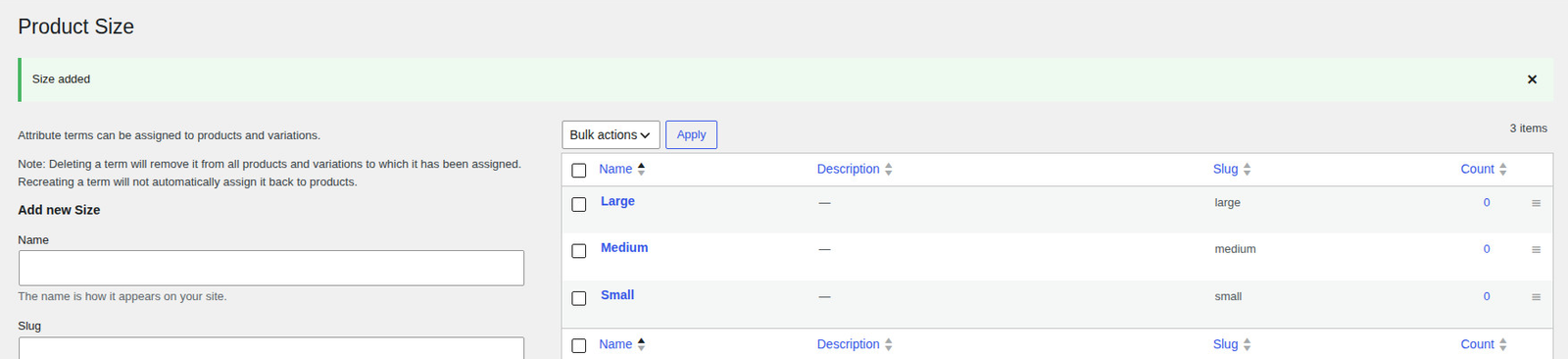
That is Part 1 done. Your store now owns a Size list with three terms on it: Small, Medium, and Large. The list does not belong to the T-shirt. It belongs to the whole store, so the next shirt, the hoodies, and the hats can all use the same list without anyone typing it again.
Building the list here, rather than inside one product, pays you back quietly. Every product that uses it spells the sizes the same way, so customers are never choosing between “Large” on one page and “L” on another. And if you ever rename a term, you rename it once, in this list, and every product wearing it updates to match.
Part 2: Turn the T-shirt into a variable product
Now open the product itself. Go to Products → Add New and start a product called, say, Plain T-Shirt, or open the T-shirt if you already added it as a simple product. Write its name and description the ordinary way. The part that changes is lower down the page, in the box called Product data.
- In the Product data box, open the dropdown at the top. It normally says Simple product. Change it to Variable product. This single change is what tells WooCommerce: this product comes in choices.
One thing to notice before we go on: a variable product has no single price box. On a simple product, one price covers the whole thing. Here, the price moves down onto each variation, one box per size. That is not a catch. It is the entire point — and it is why the pricing steps below deserve your full attention.
Hang the sizes on the product
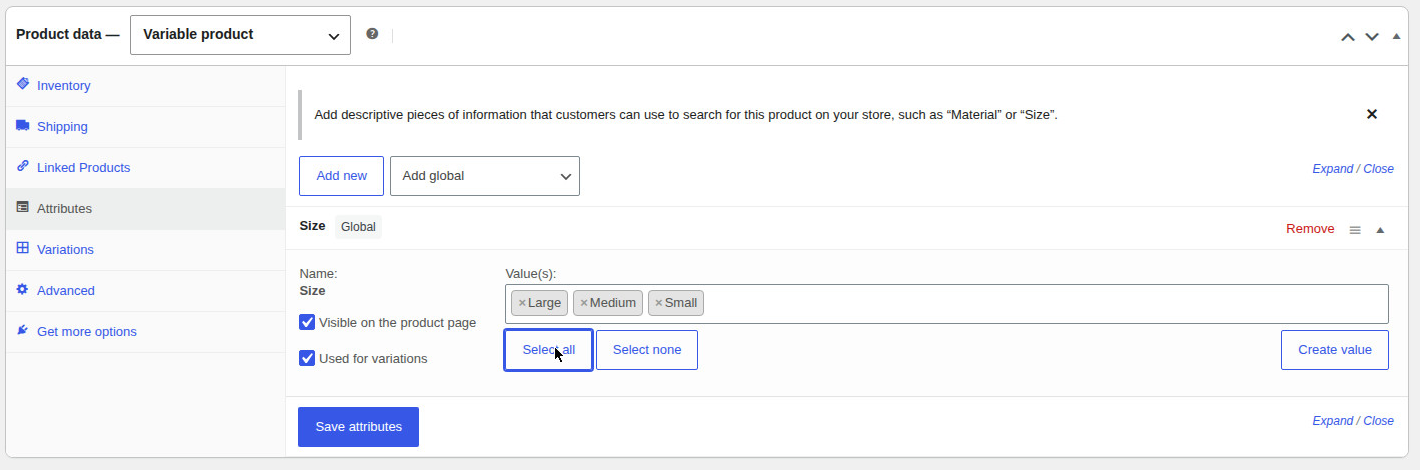
- Click the Attributes tab, on the left side of the Product data box.
- At the top of the tab, use the Add global dropdown to choose Size, and add it. A Size section opens on the product.
- Click in the Values box and pick Small, Medium, and Large — or click Select all to take the whole list at once.
- Tick the box marked Used for variations. This tick matters more than it looks. Without it, Size is only a label printed on the page. With it, Size becomes real choices a customer can buy.
- Click Save attributes.
Build the variations and give each one a price
- Click the Variations tab, on the left side of the Product data box.
- Click the Generate variations button. WooCommerce builds one variation for every term you selected. Three rows appear: Small, Medium, and Large. Nothing is for sale yet. At this moment, they are three empty boxes.
- Click the Small row to open it. In the Regular price box, type 20.
- Open the Medium row and type 20 there too.
- Open the Large row and type 22. This is the moment the whole method pays off: the price belongs to the size, not to the product as a whole.
- Click Save changes at the bottom of the Variations tab. Then click Publish (or Update, if the product was already live) at the top of the page.
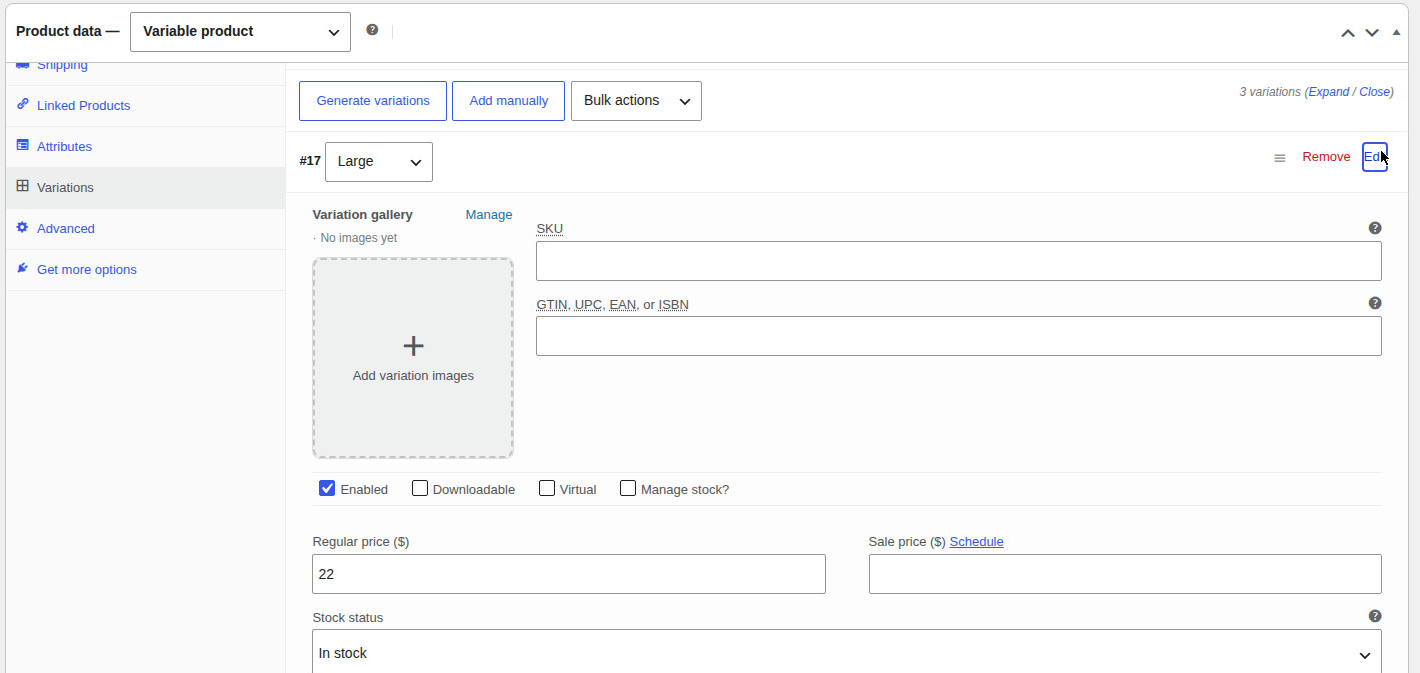
Read this one paragraph before you go any further. A variation with no price cannot be bought. If a Regular price box is left empty, that size is not offered for sale. WooCommerce shows no error and no warning. The size simply does not become something a customer can purchase. Every other step in this piece arranges things. This one is the sale itself. Price every variation, every time.
Optional: stock and weight for each size
If you keep count of your stock, open a variation and tick Manage stock?, then type how many of that size you hold. WooCommerce then counts Small separately from Large, so you can sell out of one size without closing the whole product. If a size costs more to post, you can also give that variation its own Weight. Leave the weight box empty and WooCommerce quietly uses the main product’s weight instead. Skip this whole paragraph if you do not track stock. The product works without it.
Look at the product the way a customer does
Click View product and look at the page with fresh eyes. Next to the word Size there is a dropdown. Its first line reads Choose an option, and under it sit Small, Medium, and Large. Until a customer picks one, the page usually shows the price as a range, $20–$22, and there is no buying yet: a choice has to be made first. (With some themes the choices appear as buttons instead of a dropdown. The behavior is the same.)
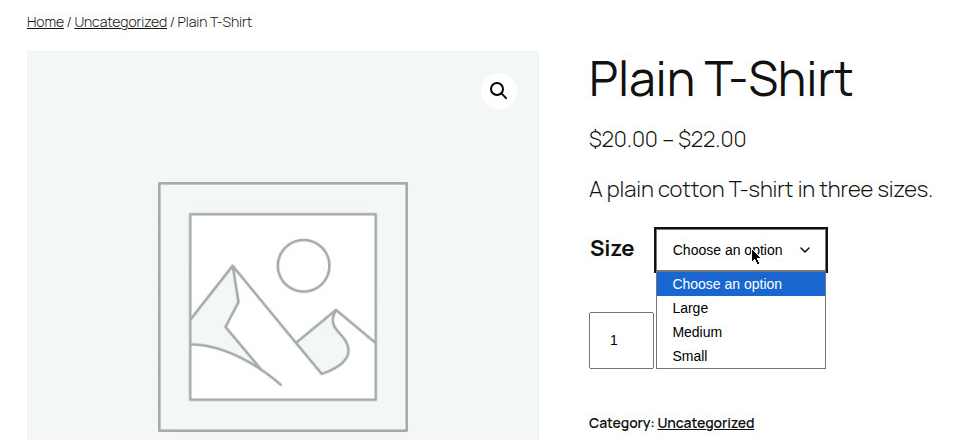
Now pick Medium. The price settles on $20, and the Add to cart button becomes available. Switch to Large. The price changes to $22. That is the whole machine working: one page, three real products underneath it, each with its own price, and the customer only ever sees a simple question — which size?
The choice follows the shirt all the way through. In the cart and at the checkout, the product name arrives with the chosen size attached — Plain T-Shirt, Large — so the customer can check their pick before paying, and you can see exactly which size to pack when the order lands.
If something looks wrong
Almost every variation problem comes back to one of three small things. Check them in this order before you change anything else.
The dropdown is there, but a size cannot be bought
A price is missing. Open the product, go to the Variations tab, open the size that will not sell, and look at its Regular price box. If it is empty, that is the whole problem. Type the price, click Save changes, and update the product.
There is no Size dropdown on the product page
The attribute is sitting on the product as information only. Go to the Attributes tab and check two things: the box marked Used for variations must be ticked, and the terms Small, Medium, and Large must actually be selected in the Values box. Fix whichever one is missing, click Save attributes, then update the product.
The Variations tab is empty
The attributes step was skipped, or it was never saved. Go back to the Attributes tab. Add Size with Add global, select the three terms, tick Used for variations, and click Save attributes. Only then go to the Variations tab and click Generate variations. Variations are built from attributes, so if the attributes are not there, there is nothing to build from.
That is the full method: sizes set up once, hung on the product, turned into variations, and priced one by one. Your T-shirt is a single tidy page, and every size on it can actually be bought. One last job, and it takes five minutes: put a size in the cart and test the checkout before customers do. If the size, the price, and the total all arrive at the checkout looking right, you are done — no tears required.