

Contents10 sections
WooCommerce is the free store plugin for WordPress. (A plugin is a piece of add-on software that gives your site a new ability — in this case, selling things.) You add WooCommerce to a WordPress site, and the site gains a shop: product pages, a cart, and a checkout where customers pay. The plugin itself costs nothing.
This piece walks you through adding one product, start to finish, in plain steps. It assumes WooCommerce is already installed and switched on at your site — installing it is not our subject here. If you are still deciding which store software to use in the first place, we compared the two big options in WordPress or Joomla for a small store.
We will use one real example the whole way through, so every number has something concrete to hang on:
- Product: a scented candle, “Vanilla Bean Soy Candle”
- Regular price: $24, with a sale price of $19
- Weight: 0.4 lb, in its jar
- Size: 3.25 × 3.25 × 4 inches (length × width × height)
- Stock: 40 candles on the shelf
- Its code (SKU): CND-VAN-01
Before you start
Have these ready before you open the editor, and the whole job takes a few minutes:
- The product’s name, written the way a customer would say it.
- Its price, and a sale price if you want one.
- One or more photos of the product, saved on your computer.
- The product’s weight and size, if you will post it to customers. A kitchen scale and a ruler are enough.
- A rough count of how many you have.
One note: everything below starts from the Products menu in your WordPress dashboard. If you cannot see a Products menu at all, skip to the fixes at the end of this piece — that one has a simple cause.
Step 1: Open the new product screen
- Log in to your WordPress dashboard.
- In the left-hand menu, find Products and click it.
- Click Add New.
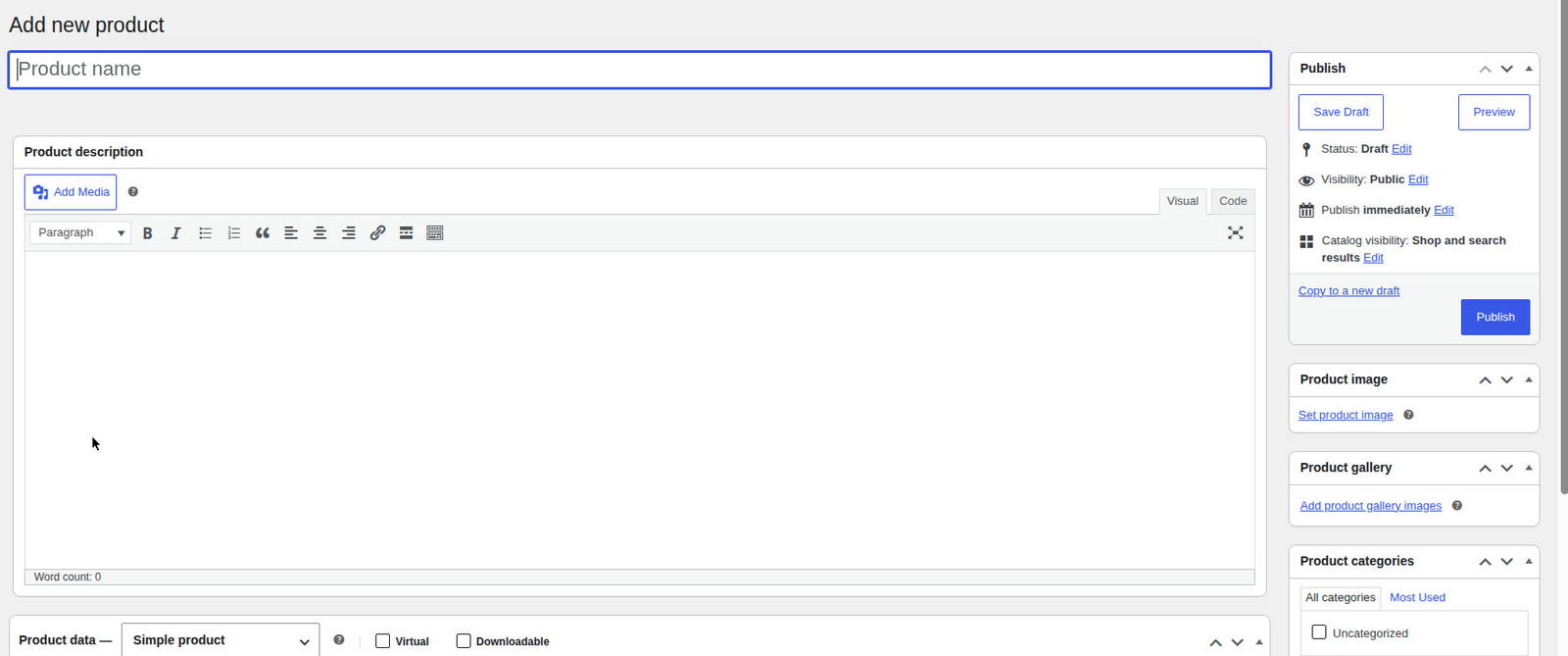
You are now on the Add New product screen. It looks like the screen for writing a blog post, with extra boxes below and to the right. Those extra boxes are where the store details live — price, stock, shipping, and photos.
Step 2: The name and the two descriptions
WooCommerce gives you one name field and two description fields. The two descriptions are not a mistake, and they are not interchangeable — each one shows in a different place on the product page.
- Type the product name in the big field at the top. For our example: Vanilla Bean Soy Candle. Keep it plain and specific — the name a customer would search for.
- Below the name is a large writing box. This is the long description. Write the full story of the product here: what it is, what it is made of, how big it is, how to use it, anything a careful buyer would want to know. This text appears on the product page itself, further down the page — many themes place it in its own section or a tab labeled Description.
- Scroll down to the smaller box labeled Product short description. Write one or two sentences only. This is the summary that appears near the top of the product page, beside the photo and just above the buy button — the words a customer reads while deciding.
For the candle, the short description could be: “A hand-poured soy candle with a warm vanilla bean scent. About 35 hours of burn time, in a reusable glass jar.” The long description can then carry the details: the soy wax, the cotton wick, care instructions, and the jar size.
A useful rule of thumb: if a sentence helps someone decide in the first ten seconds, it belongs in the short description. Everything else belongs in the long one.
Step 3: Set the price
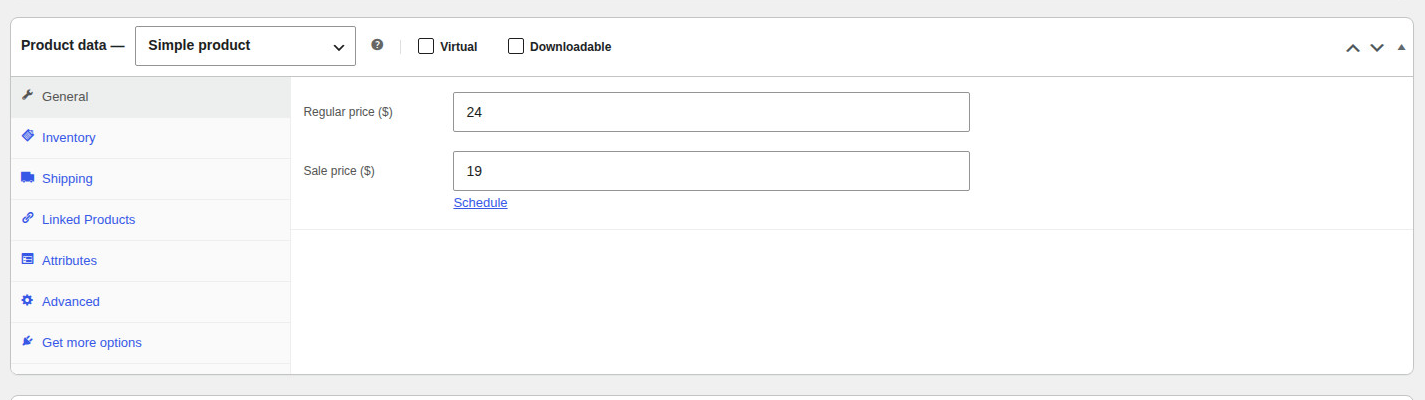
Scroll to the panel labeled Product data. This panel holds most of the store settings for the product, grouped into sections you open from the list on its left side.
- At the top of the panel, check the product type says Simple product. It does by default, and a plain item like our candle is exactly that — one product, one price, nothing to choose. Leave the type there. If your product comes in sizes or colors, that is its own piece: see WooCommerce variations without tears.
- Open the General section of the panel.
- In Regular price, type the normal price with no currency symbol: 24.
- In Sale price, type the discounted price if the product is on offer: 19. Leave it empty when there is no sale. When a sale price is set, the product page shows the sale price with the regular price crossed out, and you can use the small Schedule link beside it to give the sale a start and end date.
Step 4: Add the product image and gallery
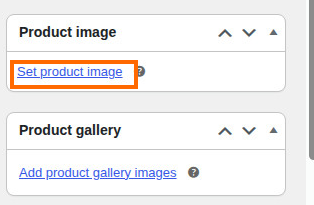
Look at the right-hand column of the screen. Two panels there handle photos.
- In the Product image panel, click Set product image. Choose your best photo — upload it from your computer if it is not in your media library yet — and confirm. This is the main picture: the one that appears on the shop page and at the top of the product page.
- In the Product gallery panel below it, click Add product gallery images and choose any extra photos — for the candle, a shot of the candle lit, and one of the jar from above. Gallery photos appear as smaller pictures on the product page that visitors can click through.
One main image is required for a product to look right in the shop. The gallery is optional, but a second angle answers questions before a customer has to ask them.
Step 5: Weight and dimensions, for shipping
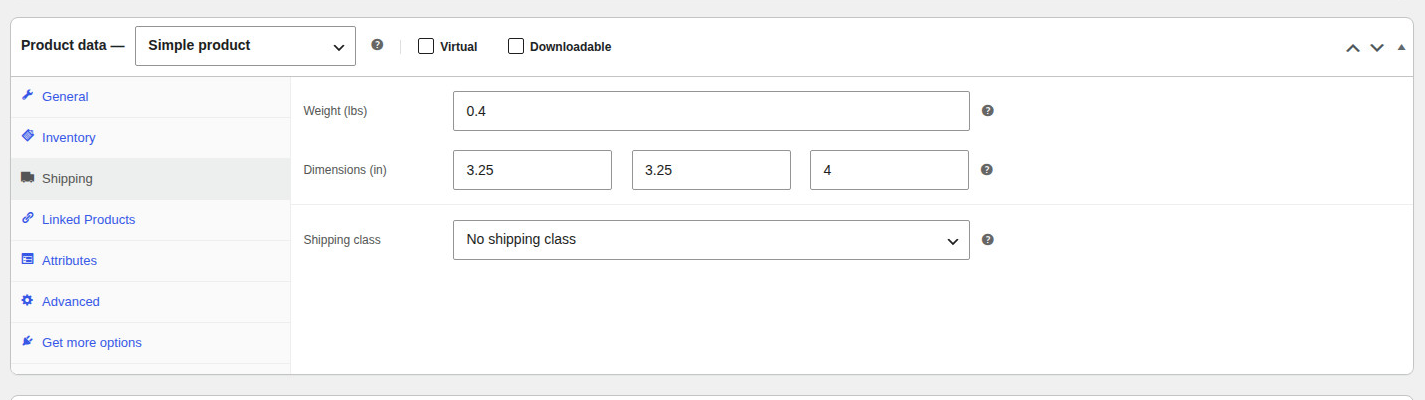
Still in the Product data panel, open the Shipping section.
- In Weight, type the product’s weight as a plain number: 0.4. The unit — pounds, ounces, kilograms, grams — is a store-wide setting (under WooCommerce, then Settings, then Products), so type the number in whatever unit your store uses.
- In Dimensions, type the length, width, and height: 3.25, 3.25, and 4.
- Leave Shipping class alone for now. It is a way of grouping products that cost the same to post, and a first product does not need it.
Why bother with two small boxes? Because shipping charges are worked out from weight and size. If your store charges for delivery by weight, or a carrier works out a live price at checkout, those numbers come from these fields. A product with no weight can be charged at the wrong rate — or offered with no shipping price at all. For the candle, weigh the finished jar, not the empty one: what matters is what you actually put in the parcel.
Step 6: Inventory basics — SKU and stock
In the Product data panel, open the Inventory section. Two fields here do the everyday work.
- SKU — pronounce it “skew” — stands for Stock Keeping Unit. In plain words, it is your own private code for this exact product, like a label on a shelf in a stockroom. It never has to be shown to customers; it exists so you, your paperwork, and your store software can tell one product from another. Type one for the candle: CND-VAN-01 — “candle, vanilla, number one”. Any system works, as long as every product gets a different one: no two products in your store may share a SKU.
- To have the store count your stock for you, tick Track quantity (on some versions this box is labeled Stock management). A Stock quantity field then appears — type how many you have: 40. From then on, WooCommerce subtracts one each time a candle sells, and marks the product out of stock when the count runs out.
If you do not see a box to tick or a quantity field, stock counting is switched off for the whole store. You can switch it on under WooCommerce, then Settings, then Products, then Inventory — or simply leave it off for now and set the product’s Stock status to In stock by hand. Either way works for a first product.
Leave the rest of this section alone today: back orders, low-stock warnings, and “sold individually” are refinements you can add when you need them, and a first product does not.
Step 7: Pick a category
In the right-hand column, find the Product categories panel. Categories are the shop’s shelving: they group products so customers can browse “Candles” instead of scrolling past everything you sell.
- If a fitting category is listed, tick its box.
- If not, click Add new category, type the name — Candles — and click the Add button. The new category is created and ticked for you.
Do not skip this. A product with no category is filed under a default category named “Uncategorized,” where customers are unlikely to browse for it.
Step 8: Publish, then go and look at it
Everything is filled in. In the Publish panel at the top of the right-hand column, click Publish.
Now do the step new store owners most often skip: look at your product the way a customer will.
- Click the View product link that appears near the top of the screen after publishing. Read the page slowly. Is the name right? Is the price showing as $19 with $24 crossed out? Does the short description sit near the photo, and the long description further down? Do the photos look like the product on your shelf?
- Then open your shop page — the page that lists all your products — and find the candle in the list. This is the view customers arrive at first. Check the picture and price there too.
If anything reads wrong, go back to the product (Products, then All Products, then Edit under its name), fix it, and click Update. Nothing a customer sees is permanent, and every field in this piece can be changed the same way you set it.
One last job, and it matters: before a real customer buys it, test the checkout yourself, all the way through a pretend purchase. A product page that reads right is only half the store.
If something is not there: three quick fixes
If you don’t see a Products menu
WooCommerce is not installed, or it is installed but not switched on. Go to Plugins in the dashboard menu. If WooCommerce is in the list, click Activate under its name. If it is not in the list at all, it needs installing first — a separate job from adding products. Once WooCommerce is active, the Products menu appears and this whole piece opens up.
If you published, but the product is not on the shop page
Open the product for editing and look at the Publish panel. Two settings hide products. First, the status: if it says Draft, the product was saved but never published — click Publish. Second, click the Catalog visibility option in the same panel and make sure it is set to Shop and search, which shows the product on shop pages, category pages, and in search results. The “Hidden” option keeps a product off all of those while leaving it reachable by a direct link, which is useful for special cases but a common accident for a first product.
If there is no quantity box in the Inventory section
Stock counting is off for the whole store. Switch it on under WooCommerce, then Settings, then Products, then Inventory, by ticking the Manage stock option and saving. Come back to the product and the quantity field will be there. Until then, the Stock status dropdown in the Inventory section is how you tell the store whether the product can be bought.