
Contents6 sections
If you buy a WordPress theme, or download one from anywhere other than the theme directory inside your dashboard, it arrives on your computer as a .zip file. Installing it is a short job, and WordPress does the unpacking for you. In this tutorial we’ll walk you through the dashboard upload, step by step, then show you the manual route for when an upload is blocked, and the fixes for the errors people run into most often.
It is written for a beginner running a self-hosted WordPress site (the WordPress.org kind, not a WordPress.com plan). You need two things: an administrator account on the site, and the theme’s .zip file saved somewhere you can find it. You do not need to write or edit any code.
Before you start
Make a backup first. Changing themes should not touch your posts and pages, because your content lives in the database, not in the theme. But a backup makes any problem reversible, and it takes only a few minutes with your backup plugin or your host’s backup tool. Let it finish before you go on.
Make sure you have the right zip. Your file might come from the WordPress.org theme directory, from a developer’s website, from a marketplace account’s downloads page, or from a shop’s theme downloads. Marketplace downloads often give you a choice between “All files & documentation” and an “Installable WordPress file only.” The installable file is the one WordPress wants. If you already downloaded the full package, keep it — the troubleshooting section below explains how to pull the right file out of it.
Do not unzip the file. This is the step people get wrong most often. WordPress expects the .zip itself and extracts it during installation. If you unzip it first and try to upload the loose folder or its contents, the install will fail.
One note about child themes. Some themes ship with a second, smaller zip: a child theme. A child theme lets you make changes that survive updates to the main (parent) theme. If your package includes one and you plan to customise beyond the theme’s built-in settings, install both zips using the same steps below, and activate the child theme last. If you are not planning changes of that kind, installing the main theme alone is fine to get started.
Install the theme from the WordPress dashboard
- Log in to your WordPress dashboard.
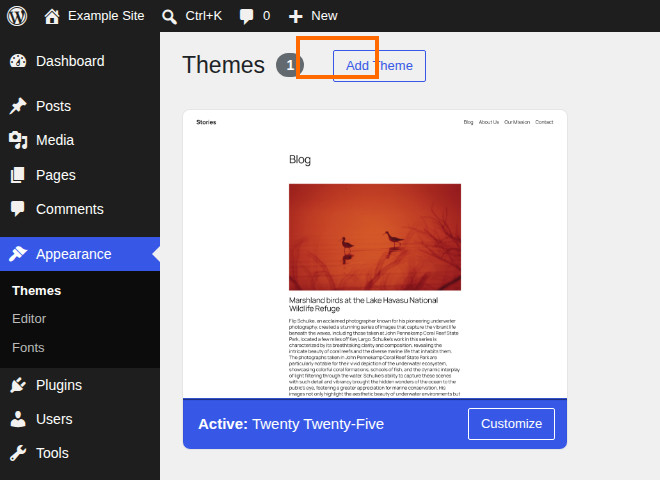
- In the left-hand menu, go to Appearance, then Themes.
- Click Add Theme at the top of the screen. (In older versions of WordPress, this same button is labelled Add New.)
- Click Upload Theme, at the top of the Add Themes screen. An upload form appears.
- Click Choose File and select the theme’s
.zipfile on your computer. - Click Install Now. WordPress uploads the file, unpacks it, and shows a short progress log ending with “Theme installed successfully.”
- Click Activate on that results screen. The new theme is now live on your site.

Installing and activating are two separate actions. Until you click Activate, your visitors still see your old theme, and your old theme stays installed afterwards, so you can switch back at Appearance > Themes at any time.
After activating, open your site in a fresh browser tab and look it over. Your posts and pages will be there. Your menus and widget areas — the sidebar and footer slots a theme reserves for extra content — may not be in place, because those are set up per theme — if a menu is missing, reassign it under Appearance > Menus (classic themes) or in the Site Editor (block themes, covered next).
If your new theme is a block theme
Some of what you see after activation depends on which kind of theme you installed. A classic theme is customised in the Customizer — the settings panel with a live preview — at Appearance > Customize. A block theme works differently, and the difference catches people out.
With a block theme active, the Customizer is not available — it is removed from the Appearance menu, because the same jobs are done elsewhere. In its place you get the Site Editor, at Appearance > Editor. That is where a block theme is customised:
- Templates control the layout of whole page types — your homepage, single posts, archives, the 404 page.
- Template parts are the reusable pieces inside templates, mainly the header and footer.
- Styles, inside the Site Editor, sets site-wide colours, typography and spacing.
- Menus are handled with the Navigation block — the block that holds your menu links — and widget areas are replaced by blocks placed directly in templates.
So if you activate a theme and cannot find the Customizer, nothing is broken. You are running a block theme, and the Editor is where your design controls live. A quick way to tell which kind you have: open the Appearance menu. If it lists Editor, the theme is a block theme; if it lists Customize instead, it is a classic theme. Block themes also lean heavily on ready-made block layouts — our guide to block patterns, explained shows what those are and how to use them.
The manual route: FTP or your host’s file manager
If the dashboard upload is blocked — most often by a file-size limit — you can place the theme on the server yourself. You need an FTP program or the file manager in your hosting control panel, plus your hosting login details, which your host can give you. (FTP is the standard way of moving files between your computer and your server; SFTP is its secure form, and the one to prefer.) Don’t let the extra steps put you off — it is the same theme, just carried onto the server by hand.
- On your computer, unzip the theme file. This time, unzipping is correct. You should end up with a single folder named after the theme. Open it and confirm that
style.csssits directly inside it. - Connect to your server and open the folder
/wp-content/themes/. - Upload the whole theme folder into it, so the theme lives at
/wp-content/themes/theme-name/. - Go back to your dashboard, open Appearance > Themes, find the new theme in the list, and click Activate.
The theme appears in the dashboard list as soon as its folder is in place; the upload itself does not activate anything.
Troubleshooting
“The package could not be installed. The theme is missing the style.css stylesheet.”
This message means WordPress looked inside your zip and could not find style.css where a theme needs it: at the top level of the theme’s folder. The file is rarely missing in reality. In most cases you uploaded the theme’s full download package — a zip that wraps documentation, demo files, a licence file, and, inside it, the actual theme zip. WordPress opened the outer package, found no stylesheet at the top, and stopped.
The fix: unzip the downloaded package on your computer, find the theme’s own .zip inside, and upload that file instead. If your download page offers an “Installable WordPress file only” option, downloading that version achieves the same thing. A related cause is a folder nested one level too deep — the theme folder inside another folder of the same name — which puts style.css one level below where WordPress looks. And if neither applies, check that the file really is a theme: a plugin zip uploaded on the theme screen produces the same failure.
The file is too large, or the upload fails
Every server sets a maximum upload size. If your theme zip is larger than that limit, the upload fails — commonly with a message saying the file “exceeds the upload_max_filesize directive in php.ini” — that directive is simply your server’s upload-size setting, kept in its configuration file — or the upload simply stalls and dies. You have two options. Ask your host to raise the limit; it is a standard request and usually a quick change on their side. Or use the manual FTP route above, which does not go through the dashboard upload form and so is not held to the same limit.
Activation breaks the site
Occasionally a theme conflicts with something on the site and activation takes the site down — visitors see a message that “there has been a critical error on this website,” or a blank page. Your content is not lost; it is stored in the database. Work through these steps in order:
- Check the inbox of the site’s administrator address. Since WordPress 5.2, WordPress detects this kind of fatal error and sends the administrator a message with a special Recovery Mode link. Recovery Mode is WordPress’s built-in safe mode: open that link and log in, and the faulty theme is paused just for your session, so the dashboard works.
- Switch the theme back. Go to Appearance > Themes and activate your previous theme, or one of the default WordPress themes. Then click Exit Recovery Mode in the admin toolbar and check the site.
- If you cannot get in at all, connect by FTP or your host’s file manager, open
/wp-content/themes/, and rename the new theme’s folder — adding-offto its name is enough. WordPress can no longer load that theme and falls back to a default theme if one is installed, which gets you back into the dashboard to sort things out. - If the site is still not right, restore the backup you made before you started.
Checked against the official documentation. We verified the steps, menu names, error meanings and Recovery Mode behaviour in this tutorial against the official WordPress.org documentation and Learn WordPress in October 2026.
Where to go next
Your theme is installed and active. The natural next jobs are small ones: reassign your menus if they moved, check your homepage on a phone, and set a site icon so your pages are recognisable in browser tabs and bookmarks. That last one takes about two minutes — here is how to add a favicon in WordPress and Joomla. Once the basics are in place, you can explore your theme’s settings at your own pace, knowing you can switch back or restore your backup whenever you need to.