
Contents3 sections
Level: Intermediate · Time: 10 minutes · Cost: Free
The site suddenly shows “500 Internal Server Error” or a blank white page. You didn’t touch anything. Or you did, five minutes ago. Here’s the calm order that finds the cause most of the time. The 500 message itself tells you almost nothing, so the fastest path is to look at the log first and then test the most common culprits one by one.
What you need
- FTP or file-manager access
- A recent backup (if you don’t have one, see our backup guide)
- Access to the hosting error log if possible
The steps
Step 1: Check the error log
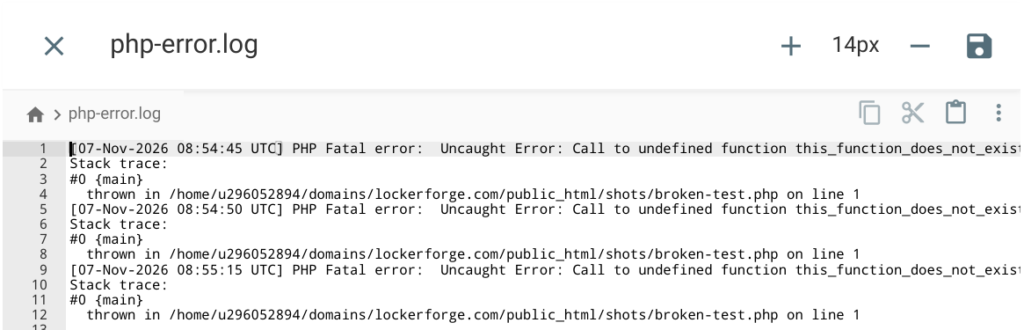
Note the exact time the error started and what changed (plugin update, theme switch, PHP version change). Open the hosting error log and look for a matching line—it often names the file and line number. Why this step works: the log points straight at the problem and saves the guessing. You will see a timestamped list of errors; the newest entries are usually at the top or bottom. If the log is empty, enable WordPress debugging temporarily. Verify by copying the exact error line so you can search for the filename later.
Step 2: Rename .htaccess
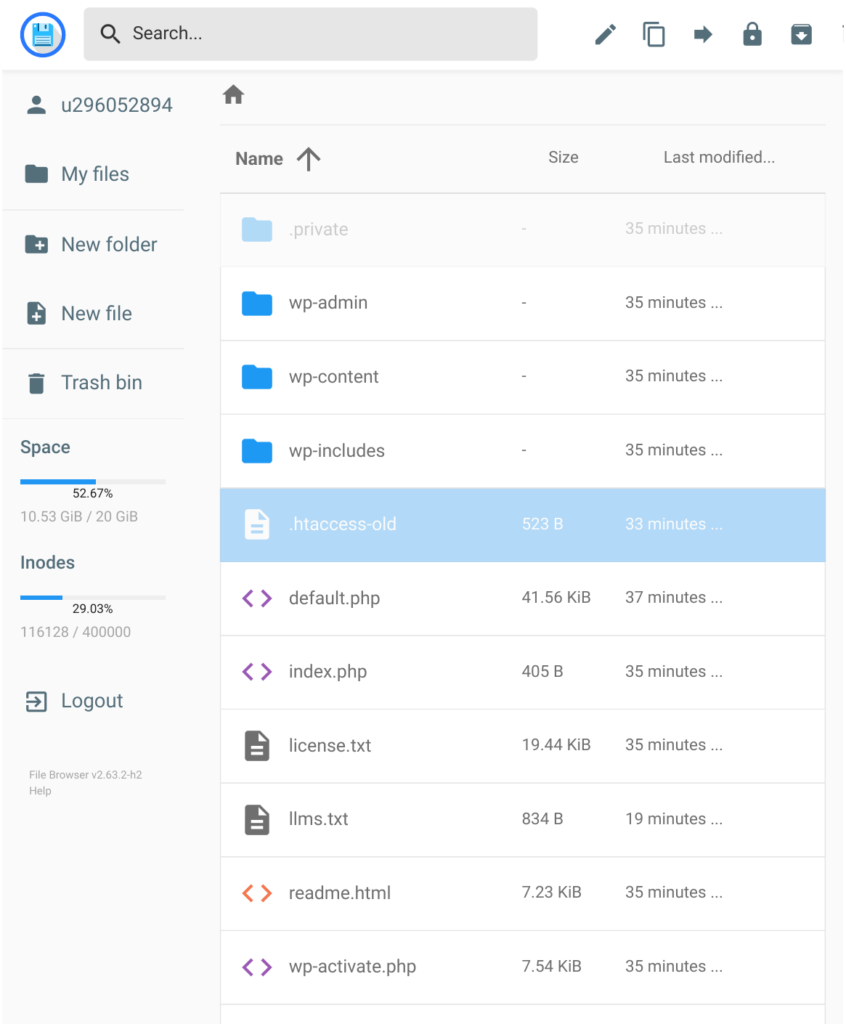
Via FTP or the file manager, rename .htaccess to .htaccess-old in the site root. Reload the site. If it works, go to Settings > Permalinks and click Save Changes to generate a fresh one. You will see the file list; after renaming, the original name disappears and the new name appears. Why this step works: a corrupted .htaccess is one of the most common causes of a 500 that leaves no PHP error. If the site still shows 500 after the rename, the problem is elsewhere. Verify by reloading the home page—if it appears, the .htaccess was the culprit.
Step 3: Disable the plugins
If it still fails, rename the plugins folder to plugins-off. Reload. If the site returns, rename the folder back and turn plugins off one by one until you find the culprit. You will see the plugins folder in the wp-content directory; after the rename the site should load without any plugins. Why this step works: a single plugin fatal error can take down the whole site. If the site stays down, the theme or a core file is more likely. Verify by confirming the site loads with plugins off, then re-enabling them until the error returns.
Step 4: Switch to a default theme
Still broken? Rename the active theme folder. WordPress falls back to a default theme. You will see the themes folder; after renaming the active theme the site should switch to a default look. Why this step works: a theme error produces the same 500 as a plugin error. If the site still fails, the problem is probably in wp-config.php or a mu-plugin. Verify by seeing the default theme’s styling on the front end.
Step 5: Raise the memory limit
Open wp-config.php and add define('WP_MEMORY_LIMIT', '256M'); just above the “That’s all, stop editing” line. Save and reload. You will see the PHP file in your editor; after saving, the new line is visible. Why this step works: many 500 errors are simply the site running out of memory during a heavy operation. If the error persists, the log will now show a different message. Verify by reloading the page that previously failed.
Step 6: Restore the backup
If nothing helps, restore the backup from before the change, then re-apply updates one at a time on staging. You will see the backup tool or file restore progress. Why this step works: returning to a known-good state lets you isolate the exact update that broke the site. If the backup itself fails to restore, contact the host. Verify by confirming the site loads and then testing each update separately.
Step 7: The step everyone skips
After the site is back, clear any caching plugin and your browser cache, then load the same page in an incognito window. Confirm the error is gone and note which change fixed it so you can avoid it next time. Verify by checking three different pages and the admin dashboard. You should see normal pages in the private window and no 500 messages. If a cached 500 still appears, purge the host’s cache as well.
Worked example: A portfolio site went to a white screen right after a plugin update. The owner checked the error log, saw a fatal error naming the new plugin, renamed the plugins folder, and the site returned. She re-enabled plugins one by one until the same error appeared, then rolled that plugin back to the previous version. After clearing the cache she confirmed the site stayed up in an incognito window and wrote down the plugin name so she would test it on staging next time.
Common mistakes
| Mistake | Why it hurts |
|---|---|
| Deleting .htaccess instead of renaming it | Then permalinks stay broken. Without the file WordPress cannot generate pretty permalinks until you save the Permalinks screen again. |
| Turning off every plugin at once and forgetting which one you re-enabled last | You end up with a working site but no idea which plugin caused the original error. |
| Raising the memory limit without checking whether a single plugin is the real memory hog | The higher limit only hides the problem until the next heavy page load. |
| Ignoring a recent PHP version change by the host | Some plugins need an update first. A plugin that worked on PHP 8.1 can fatal on PHP 8.3 until the developer releases a compatible version. |
If the 500 error is still there after these checks, Locker Forge can dig into the logs and get the site back online.
Written against WordPress 7.1.4.